Give us view-only access to your Meta Ads Manager
Follow the 5 steps below. We only need to see your past ads and how they performed. We can't change anything or spend any money.
hampusjonsson08@gmail.com
Copy it exactly. You'll paste it in step 3.
What we'll be able to see
- All your past and current ads
- Amount spent
- ROAS and website purchases
- CTR, CPC and CPM
What we can NOT do
- Create, edit or pause ads
- Spend your budget
- Change settings or permissions
- Add or remove other people
Open Business Settings and go to People
Log in to Facebook with the account that is an admin of your business, then open the link below. In the left menu click Users, then People.

Click “Invite people”
It's the blue button at the top right of the People page.
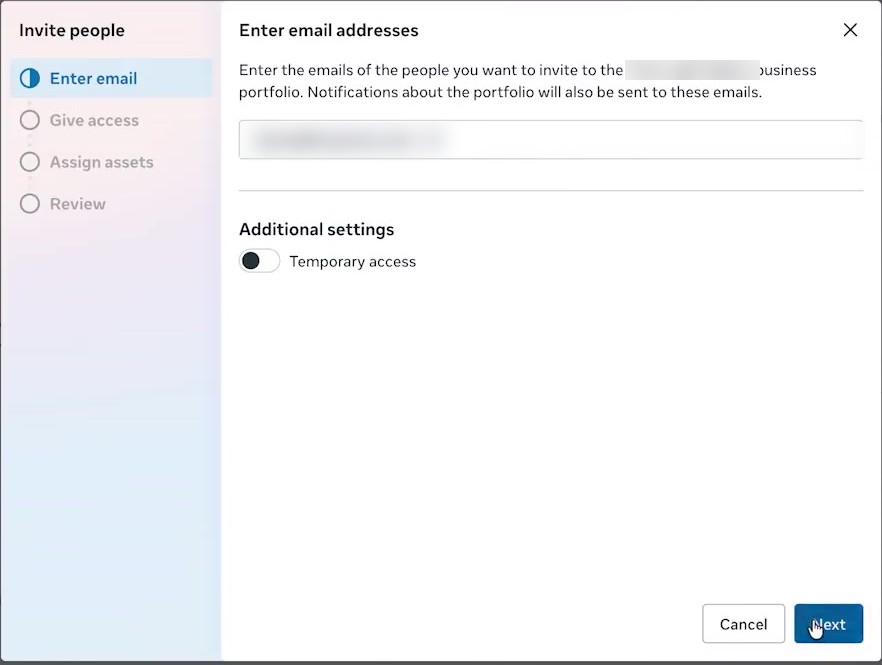
Paste our email and click Next
Paste hampusjonsson08@gmail.com into the box, then click Next. Leave “Temporary access” switched off.
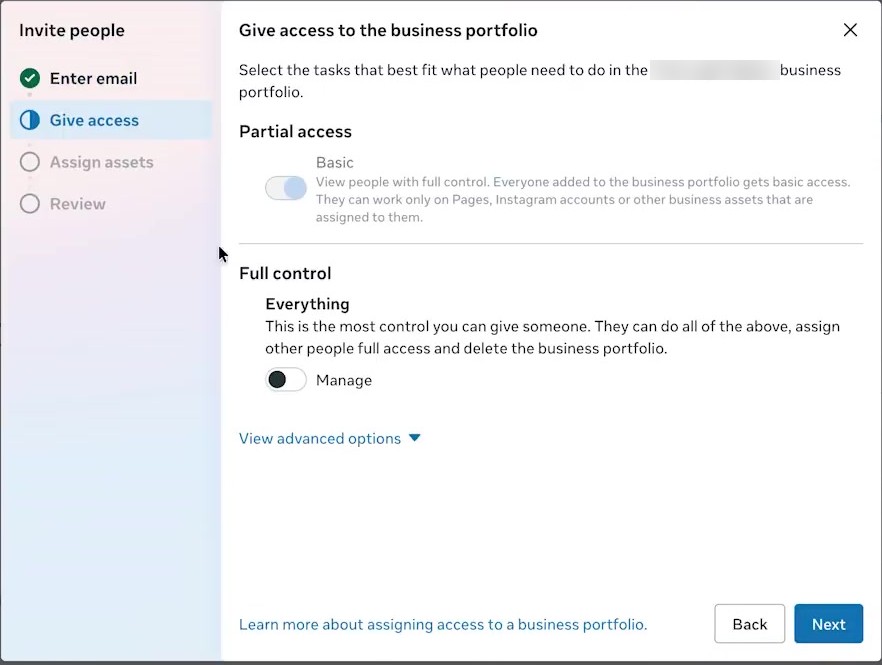
Leave everything on its default and click Next
On the “Give access to the business portfolio” screen don't change anything. “Basic” is already on, and the Manage switch stays off. Don't open “View advanced options”. Just click Next.
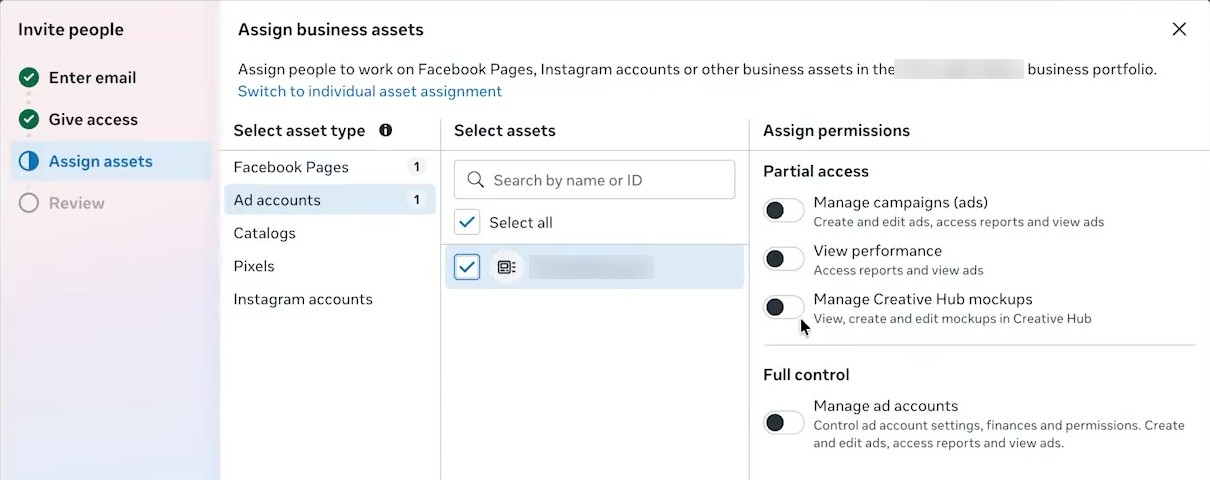
Choose your ad account and turn on “View performance”
This is the important step. In the “Assign business assets” screen:
- Click Ad accounts in the left column
- Tick your ad account (or Select all if you have several)
- On the right, switch on View performance only
- Leave every other switch off, then click Next (bottom right)
Review and send the invite
Click Next to reach the Review screen. Check it shows ad account access with View performance only, then click Next once more to send the invite.
That's it, you're done 🎉
We'll accept the invite on our side. Send us a quick message once you've sent it so we can confirm we can see your account. You can remove our access at any time under Users → People.